
Multi Player with interactive option
Our Survey Said
Based on the TV show Family Fortunes. The host can control from a laptop or handheld device. The playing board can be displayed via a laptop or via web browser on mulitple TVs. Interactive version available.
You need
- Big screen / projector
- Laptop OR a TV/Firestick with web browser
- Phone/tablet or a second browser window on your laptop
- Internet access
- Book of raffle tickets
Quick start
- Open the Game Screen on the big screen
- Fullscreen the game (F11)
- Open a Controller on your laptop/phone
Tip: If you’re using one laptop + a connected TV, “Extend” your desktop so you can keep the controller on your laptop
while the game runs full-screen on the TV.
Setup
One laptop only
Laptop + handheld
TV + handheld
Setting up using one laptop only:
- Connect your big screen to your laptop via HDMI.
- Extend the desktop onto the second screen (so you can move windows between screens).
- Launch the Game Screen, move it to the big screen, press F11 to fullscreen.
- Open a new browser window, log in again, then launch the Laptop Controller and keep it on your laptop screen.
Windows help: Set up multiple displays
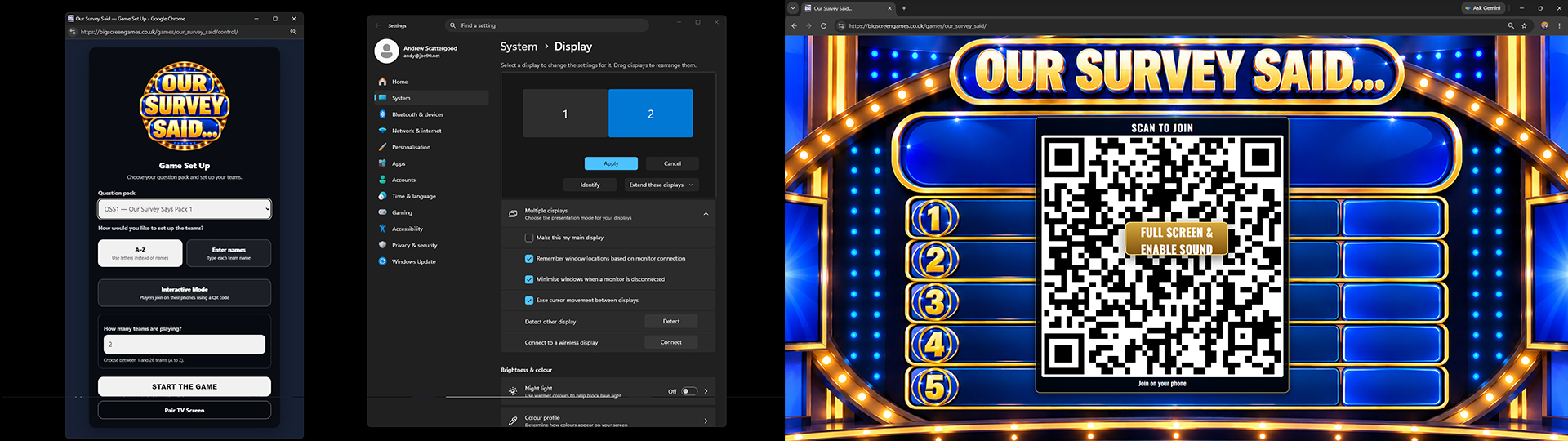
Setting up using a laptop and a handheld device:
- Connect your big screen to your laptop via HMDI.
- Launch the Game Screen and press F11 to fullscreen.
- On your phone/tablet, log in and launch the Handheld Controller.
- Bookmark the controller page for next time.
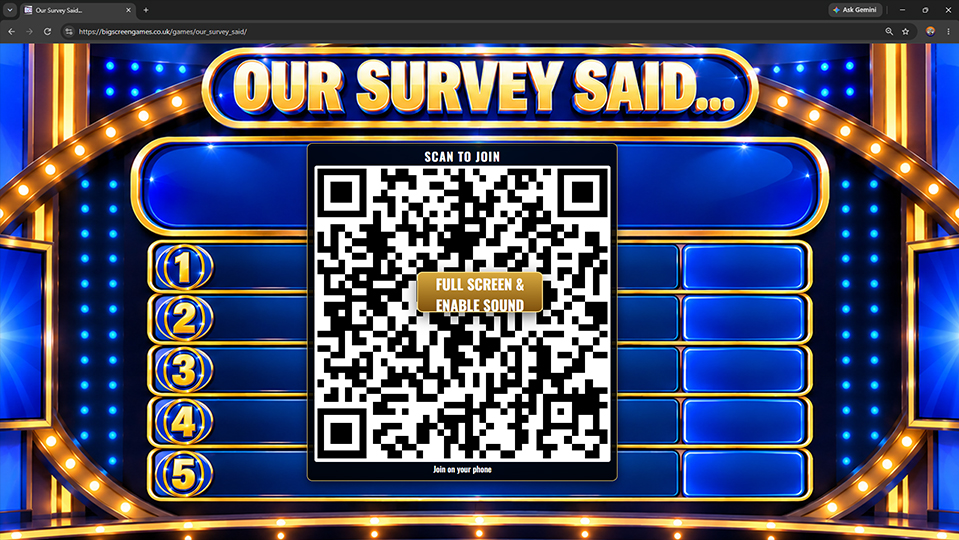
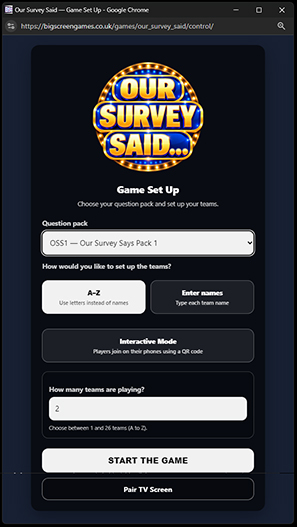
Setting up using a tv and a handheld device:
- Open a browser on your TV or FireStick.
- Go to survey.bsgtv.app
- On your phone/tablet, log in and launch the Handheld Controller.
- If the pair code shows on the TV enter it in the controller to pair.
- Click on FULL SCREEN button.
- If cookies are set on your TV it will now remember.
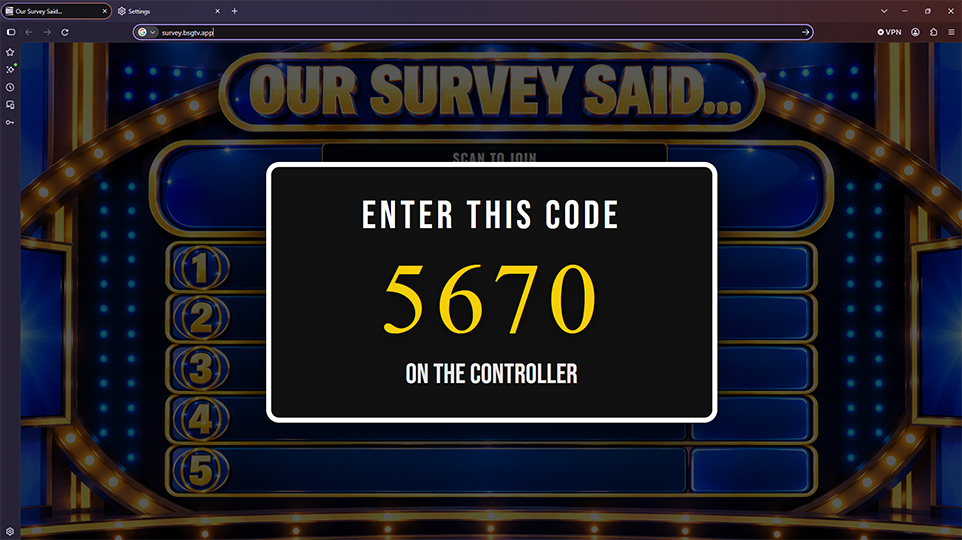
The game
- Players or teams try and score the most points to win
- Five rounds of questions from public surveys
- Players try and guess the most popular answers to score points
How to play
- The game can be played interactively using touch screen phones or with pen and paper.
- Purchase a question pack either on the controller or in the game lobby. DO THIS BEFORE SETTING UP PLAYERS.
- Select the game pack you wish to play with - this is usually the the highest number purchased.
-
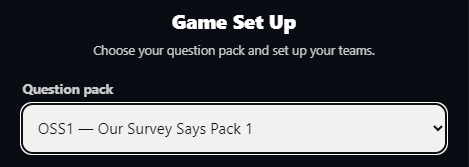
- Pick which mode you want to play: Pen and paper - best played in teams or interactive
-
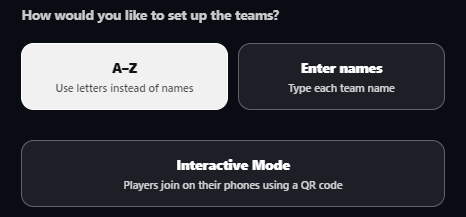
- PAPER & PEN:
- Hand out answer sheets - there's one here
- Select whether you want generic teams A-Z or whether you are using names
- If you are using A-Z select the number of teams playing.
- If you are using names, enter all the team names
-
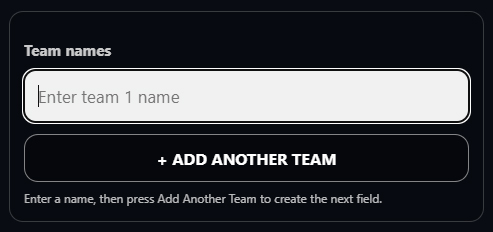
- Press the start button when you are ready.
- Play the theme music if required.
- When ready to start the game, select REVEAL THE FIRST QUESTION
- Players write down ONE answer in Q1 Try 1 - this is important as the second try cannot have been revealed.
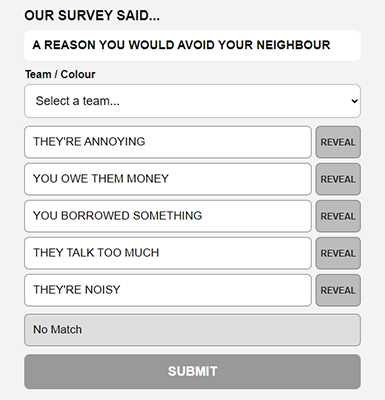
- When all teams have an answer go round each team, select the team name on the controller and the answer they gave or 'no match' and press SUBMIT (not REVEAL)
- If the answer has not yet been revealed, it will be now along with it's points.
- Teams scores are updated automatically.
- When all teams have given their answers press the ROUND 2 button - if all answers are revealed NEXT QUESTION will be shown instead.
- Players write down ONE answer in Q1 Try 2 - this cannot be an answer already shown on the answer screen.
- Repeat the answering process on the controller.
- Once all teams have given their second answer, you can then reveal any 'missing' answers on the answer screen, usually going bottom to top.
- The SCOREBOARD can be shown at anytime using the SHOW SCORBOARD button.
- Use the Next Question button to progress and repeat the process.
- Once all five questions are complete, display the scoreboard showing the winner.
- INTERACTIVE:
- Select the Interactive Mode button
-

- Press the start button when you are ready.
- A QR code is shown on the game playing screen for players to can and join the game.
-
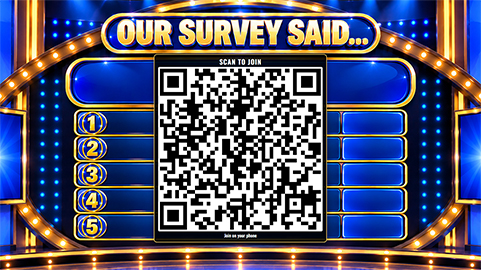
- Play the theme music if required.
- When ready to start the game, select REVEAL THE FIRST QUESTION
- INTERACTIVE: Players select one answer from a list of ten possible answers - five will score, five won't.
-
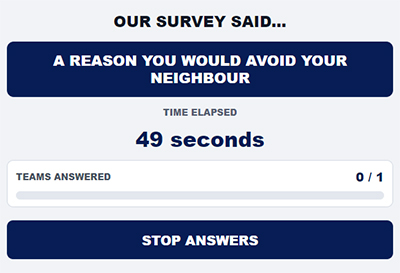
- Your control will show how many teams have answered and will automatically stop when all teams have answered.
- You can stop answers if a team leaves, it's just taking too long or you have set a time limit.
- On the control pad, you will get a list of scoring answers and non-scoring answers that have been used by players. These can be revealed in any order.
- The SCOREBOARD can be shown by using the SHOW SCORBOARD button.
- If there are any unrevealed scoring answers, players have a second go, press the ROUND 2 button.
- Repeat the above process for revealing answers.
- Any unpicked scoring answers will then be shown on the control pad. Select these in order going down the list.
- Progress by selecting the NEXT QUESTION.
- Once all five questions are complete, display the scoreboard showing the winner.
Notes for the host
- Collect an entry fee for players and announce the prize.
- Read out a quick summary of the game and rules.
- Interactive is good for any amount of players
- Paper & pen is good for a small amount of teams.
- Pen & paper can generate lots of funny wrong answers.
- In interactive maode, if there's a tie for first palce it is decided by the fastest player.